Better SofaBaton X2 Integration for Home Assistant & Apple HomeKit

SofaBaton X2 + Home Assistant: MQTT is a Disaster, Here’s How to Fix It

So I’ve been doing a pretty major overhaul of my smart home setup, moving everything into Home Assistant as the “brain” and then exposing devices back to Apple Home via the HomeKit Bridge integration. Part of this involved getting my SofaBaton X2 hub and remote properly integrated into HA.

What followed was one of the more frustrating afternoons I’ve had with smart home tech in a while. Here’s exactly what went wrong, what I found, and how I fixed it properly.

The Setup

  • SofaBaton X2 Hub: a pretty capable universal remote hub with activity-based control
  • Home Assistant: running on a VM (moving to HA Green soon)
  • Mosquitto MQTT Broker: installed as an HA app
  • ha-sofabaton-hub: HACS integration by yomonpet

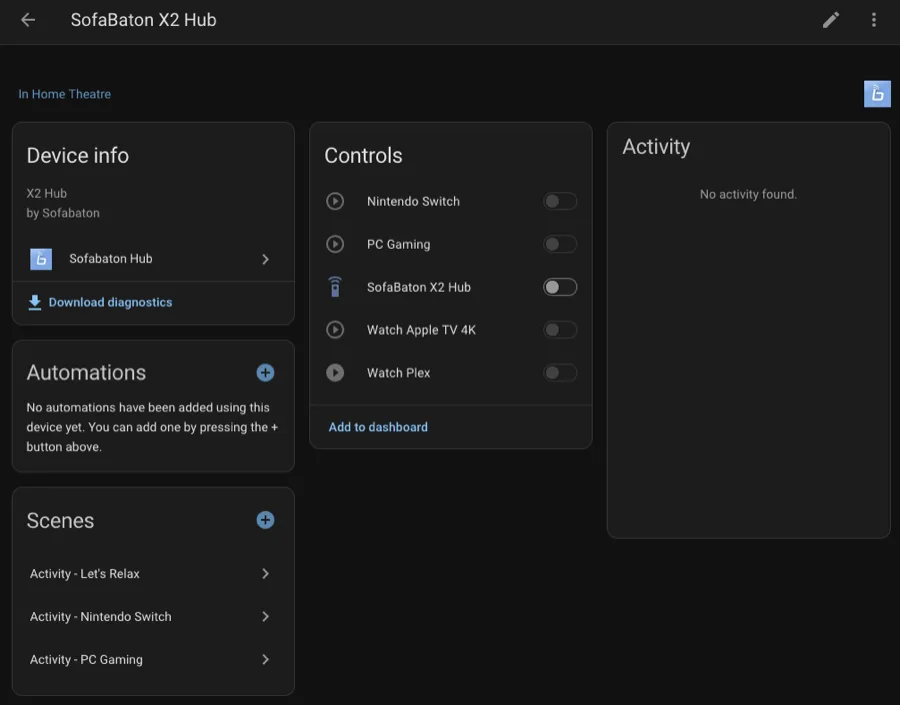
The idea is simple, when I switch activities on the SofaBaton remote (Watch Plex, Nintendo Switch, PC Gaming, Apple TV 4K), I want HA to know about it so it can keep everything in sync. And conversely, when I trigger a scene in HA or Apple Home, I want the SofaBaton to switch to the correct activity automatically.

Sounds simple. It was not.

The Problem

After installing the HACS integration and Mosquitto broker, everything appeared to work initially. The SofaBaton hub connected to MQTT, activities were showing in HA, and I could switch between them. Happy days.

Then I restarted Home Assistant.

The SofaBaton hub completely disappeared. All activity toggles greyed out. Warnings started appearing in the HA logs:

Basic data request timeout for FC012C39D308
Timeout waiting for activity list for FC012C39D308 (waited 10 seconds)

After some digging in the Mosquitto logs it became clear what was happening — the hub was not reconnecting to MQTT after HA restarts. The connection would drop when Mosquitto restarted, and the SofaBaton hub simply never came back on its own.

The only way to get it working again was to open the SofaBaton iOS app, go into the MQTT settings, and toggle the connection off and on. Not exactly a family-friendly solution when your partner is wondering why the remote stopped working.

Diagnosing the Issue

First, I confirmed the MQTT connection was the problem by listening to all topics in the MQTT settings panel in HA (# wildcard) and firing activities on the remote. Nothing. Not a peep.

Opening the Mosquitto logs confirmed it:

New connection from 192.168.0.23:63022 on port 1883.
New client connected from 192.168.0.23:63022 as sofabaton_XXXXXXXXXXXX (p2, c1, k1000, u'SofaBaton').

The c1 in that log entry is the key — it means clean session = true. The SofaBaton hub is hardcoded to tell Mosquitto to forget it exists every time it disconnects. So when Mosquitto restarts, the hub has to actively reconnect, and it simply doesn’t do this automatically.

There are no settings in the SofaBaton iOS app to change this behaviour. You get a host, port, username and password field, and that’s it. No persistent session option. No auto-reconnect toggle. Nothing.

I also tried power cycling the hub to see if that would trigger a reconnect. It didn’t.

The Firmware Update That Changed Everything

Before giving up entirely, I checked for a firmware update on the hub via the SofaBaton iOS app. There was one. I installed it.

After the update, the hub did reconnect automatically to MQTT, which was great news. However, something else had changed. The MQTT topic format had been completely updated by the new firmware:

Old topic (pre-firmware):

sofabaton/XXXXXXXXXXXX/...

New topic (post-firmware):

activity/XXXXXXXXXXXX/activity_control_up

New payload format:

json

{"activity_id":102,"state":"on"}

This completely broke the HACS integration, which was still expecting the old topic format. The integration hasn’t been updated in 5+ months and the custom Lovelace card became unusable, clicking on the entity in the card config did nothing.

Honestly, at this point the HACS integration was more trouble than it was worth.

The Fix: Bypass the Integration Entirely

Since I now knew the exact MQTT topic and payload format, I decided to ditch the HACS integration entirely and build the solution properly using:

  1. Direct MQTT triggers for physical remote → HA (so HA knows when an activity is selected on the remote)
  2. SofaBaton Cloud API for HA → SofaBaton (so HA can trigger activities without needing MQTT to be in a specific state)

The SofaBaton iOS app has an API Interface section that gives you cloud API URLs for each activity. These work regardless of MQTT state:

https://app1.sofabaton.com/app/keypress2?node_id=YOUR_NODE_ID&id=Watch Plex&type=1

type=1 = turn on, type=0 = turn off.

Step 1: Add REST Commands to Home Assistant

Create a packages folder in your HA config directory and add a sofabaton.yaml file inside it. First, add this to your configuration.yaml:

yaml

homeassistant:
  packages: !include_dir_named packages

Then create /config/packages/sofabaton.yaml with the following (replace YOUR_NODE_ID with the node ID from your SofaBaton API Interface screen):

yaml

rest_command:
  sofabaton_nintendo_switch_on:
    url: "https://app1.sofabaton.com/app/keypress2?node_id=YOUR_NODE_ID&id=Nintendo Switch&type=1"
    method: GET
  sofabaton_nintendo_switch_off:
    url: "https://app1.sofabaton.com/app/keypress2?node_id=YOUR_NODE_ID&id=Nintendo Switch&type=0"
    method: GET
  sofabaton_watch_appletv_on:
    url: "https://app1.sofabaton.com/app/keypress2?node_id=YOUR_NODE_ID&id=Watch Apple TV 4K&type=1"
    method: GET
  sofabaton_watch_appletv_off:
    url: "https://app1.sofabaton.com/app/keypress2?node_id=YOUR_NODE_ID&id=Watch Apple TV 4K&type=0"
    method: GET
  sofabaton_watch_plex_on:
    url: "https://app1.sofabaton.com/app/keypress2?node_id=YOUR_NODE_ID&id=Watch Plex&type=1"
    method: GET
  sofabaton_watch_plex_off:
    url: "https://app1.sofabaton.com/app/keypress2?node_id=YOUR_NODE_ID&id=Watch Plex&type=0"
    method: GET
  sofabaton_pc_gaming_on:
    url: "https://app1.sofabaton.com/app/keypress2?node_id=YOUR_NODE_ID&id=PC Gaming&type=1"
    method: GET
  sofabaton_pc_gaming_off:
    url: "https://app1.sofabaton.com/app/keypress2?node_id=YOUR_NODE_ID&id=PC Gaming&type=0"
    method: GET

Do a Developer Tools → YAML → Check Configuration and then a Quick Reload to load the new rest commands without a full restart.

Step 2: Find Your Activity IDs

Open the MQTT listener in HA (Settings → Devices & Services → MQTT → Configure → Listen to a topic) and listen to #. Then press each activity button on the physical remote and note the activity IDs that appear in the payload. Mine were:

  • 101 = Watch Apple TV 4K
  • 102 = Watch Plex
  • 103 = PC Gaming
  • 104 = Nintendo Switch
  • 255 = Power Off

Step 3: Create Input Booleans

Create one input_boolean helper per activity in HA (Settings → Devices & Services → Helpers → Create Helper → Toggle). These act as the state indicators and can be exposed to Apple Home as switches:

  • input_boolean.sofabaton_watch_plex
  • input_boolean.sofabaton_watch_apple_tv_4k
  • input_boolean.sofabaton_pc_gaming
  • input_boolean.sofabaton_nintendo_switch

Step 4: The Master Automation

This single automation replaces all the previous SofaBaton automations and handles everything in both directions, physical remote → HA state sync, and HA/HomeKit → SofaBaton activity switching.

Replace XXXXXXXXXXXX with your hub’s MAC address (visible on the sticker on the bottom of the hub):

yaml

alias: SofaBaton - Activity Control
description: Controls SofaBaton via cloud API and syncs state from physical remote via MQTT
triggers:
  - trigger: mqtt
    topic: activity/XXXXXXXXXXXX/activity_control_up
    id: remote_pressed
  - trigger: state
    entity_id: input_boolean.sofabaton_watch_apple_tv_4k
    from: "off"
    to: "on"
    id: watch_appletv
  - trigger: state
    entity_id: input_boolean.sofabaton_watch_plex
    from: "off"
    to: "on"
    id: watch_plex
  - trigger: state
    entity_id: input_boolean.sofabaton_pc_gaming
    from: "off"
    to: "on"
    id: pc_gaming
  - trigger: state
    entity_id: input_boolean.sofabaton_nintendo_switch
    from: "off"
    to: "on"
    id: nintendo_switch
  - trigger: state
    entity_id:
      - input_boolean.sofabaton_watch_apple_tv_4k
      - input_boolean.sofabaton_watch_plex
      - input_boolean.sofabaton_pc_gaming
      - input_boolean.sofabaton_nintendo_switch
    from: "on"
    to: "off"
    id: power_off
conditions: []
actions:
  - choose:
      - conditions:
          - condition: trigger
            id: remote_pressed
          - condition: template
            value_template: "{{ trigger.payload_json.activity_id == 101 and trigger.payload_json.state == 'on' }}"
        sequence:
          - action: input_boolean.turn_on
            target:
              entity_id: input_boolean.sofabaton_watch_apple_tv_4k
          - delay:
              milliseconds: 300
          - action: input_boolean.turn_off
            target:
              entity_id:
                - input_boolean.sofabaton_watch_plex
                - input_boolean.sofabaton_pc_gaming
                - input_boolean.sofabaton_nintendo_switch
      - conditions:
          - condition: trigger
            id: remote_pressed
          - condition: template
            value_template: "{{ trigger.payload_json.activity_id == 102 and trigger.payload_json.state == 'on' }}"
        sequence:
          - action: input_boolean.turn_on
            target:
              entity_id: input_boolean.sofabaton_watch_plex
          - delay:
              milliseconds: 300
          - action: input_boolean.turn_off
            target:
              entity_id:
                - input_boolean.sofabaton_watch_apple_tv_4k
                - input_boolean.sofabaton_pc_gaming
                - input_boolean.sofabaton_nintendo_switch
      - conditions:
          - condition: trigger
            id: remote_pressed
          - condition: template
            value_template: "{{ trigger.payload_json.activity_id == 103 and trigger.payload_json.state == 'on' }}"
        sequence:
          - action: input_boolean.turn_on
            target:
              entity_id: input_boolean.sofabaton_pc_gaming
          - delay:
              milliseconds: 300
          - action: input_boolean.turn_off
            target:
              entity_id:
                - input_boolean.sofabaton_watch_apple_tv_4k
                - input_boolean.sofabaton_watch_plex
                - input_boolean.sofabaton_nintendo_switch
      - conditions:
          - condition: trigger
            id: remote_pressed
          - condition: template
            value_template: "{{ trigger.payload_json.activity_id == 104 and trigger.payload_json.state == 'on' }}"
        sequence:
          - action: input_boolean.turn_on
            target:
              entity_id: input_boolean.sofabaton_nintendo_switch
          - delay:
              milliseconds: 300
          - action: input_boolean.turn_off
            target:
              entity_id:
                - input_boolean.sofabaton_watch_apple_tv_4k
                - input_boolean.sofabaton_watch_plex
                - input_boolean.sofabaton_pc_gaming
      - conditions:
          - condition: trigger
            id: remote_pressed
          - condition: template
            value_template: "{{ trigger.payload_json.activity_id == 255 }}"
        sequence:
          - action: input_boolean.turn_off
            target:
              entity_id:
                - input_boolean.sofabaton_watch_apple_tv_4k
                - input_boolean.sofabaton_watch_plex
                - input_boolean.sofabaton_pc_gaming
                - input_boolean.sofabaton_nintendo_switch
      - conditions:
          - condition: trigger
            id: watch_appletv
        sequence:
          - action: rest_command.sofabaton_watch_appletv_on
          - delay:
              milliseconds: 300
          - action: input_boolean.turn_off
            target:
              entity_id:
                - input_boolean.sofabaton_watch_plex
                - input_boolean.sofabaton_pc_gaming
                - input_boolean.sofabaton_nintendo_switch
      - conditions:
          - condition: trigger
            id: watch_plex
        sequence:
          - action: rest_command.sofabaton_watch_plex_on
          - delay:
              milliseconds: 300
          - action: input_boolean.turn_off
            target:
              entity_id:
                - input_boolean.sofabaton_watch_apple_tv_4k
                - input_boolean.sofabaton_pc_gaming
                - input_boolean.sofabaton_nintendo_switch
      - conditions:
          - condition: trigger
            id: pc_gaming
        sequence:
          - action: rest_command.sofabaton_pc_gaming_on
          - delay:
              milliseconds: 300
          - action: input_boolean.turn_off
            target:
              entity_id:
                - input_boolean.sofabaton_watch_apple_tv_4k
                - input_boolean.sofabaton_watch_plex
                - input_boolean.sofabaton_nintendo_switch
      - conditions:
          - condition: trigger
            id: nintendo_switch
        sequence:
          - action: rest_command.sofabaton_nintendo_switch_on
          - delay:
              milliseconds: 300
          - action: input_boolean.turn_off
            target:
              entity_id:
                - input_boolean.sofabaton_watch_apple_tv_4k
                - input_boolean.sofabaton_watch_plex
                - input_boolean.sofabaton_pc_gaming
      - conditions:
          - condition: trigger
            id: power_off
          - condition: state
            entity_id: input_boolean.sofabaton_watch_apple_tv_4k
            state: "off"
          - condition: state
            entity_id: input_boolean.sofabaton_watch_plex
            state: "off"
          - condition: state
            entity_id: input_boolean.sofabaton_pc_gaming
            state: "off"
          - condition: state
            entity_id: input_boolean.sofabaton_nintendo_switch
            state: "off"
        sequence:
          - delay:
              milliseconds: 500
          - condition: state
            entity_id: input_boolean.sofabaton_watch_apple_tv_4k
            state: "off"
          - condition: state
            entity_id: input_boolean.sofabaton_watch_plex
            state: "off"
          - condition: state
            entity_id: input_boolean.sofabaton_pc_gaming
            state: "off"
          - condition: state
            entity_id: input_boolean.sofabaton_nintendo_switch
            state: "off"
          - action: rest_command.sofabaton_watch_appletv_off
          - action: rest_command.sofabaton_watch_plex_off
          - action: rest_command.sofabaton_pc_gaming_off
          - action: rest_command.sofabaton_nintendo_switch_off
mode: queued
max: 5

A note on the power off logic; the 500ms delay followed by re-checking all booleans is intentional. Without it, switching between activities would incorrectly trigger a full power off because turning one activity on briefly leaves all booleans in an off state while the new one turns on.

The End Result

  • ✅ Physical remote button press → MQTT → HA booleans update → Apple Home reflects correct state
  • ✅ Apple Home / HA scene triggers boolean → REST API call → SofaBaton switches activity
  • ✅ Works after HA restarts (MQTT reconnect fixed by firmware update)
  • ✅ No dependency on the buggy HACS integration
  • ✅ No custom card required

The HACS integration (ha-sofabaton-hub) is essentially dead at this point, 5 months without an update, the new firmware broke the topic format, and the Lovelace card is non-functional. If you’re starting fresh, skip it entirely and use the approach above.

If you’re on the AVS Forum thread or the HA Community thread about the X2 and have been tearing your hair out, hopefully this saves you a few hours. 👊

RedGifs Not Loading with PLDT Philippines

So, one lonely night I noticed that when using the Narwhal Reddit App with PLDT that any Redgifs content takes an incredibly long time to load. We’re talking 2-3 min minutes to load like a 10mb gif.

I did a bunch of testing by routing my iPhone traffic through my Macbook and checking the requests and found that…

  • SSL handshake is quick — PLDT is not intercepting TLS or blocking Redgifs outright.
  • DNS and connect times are fine — the routing to api.redgifs.com starts fast.
  • 🚨 The response trickles in at 466 B/s, which is unusable and indicates serious throttling or congestion after the handshake.

This strongly suggests that PLDT is either:

  1. Throttling traffic to api.redgifs.com, OR
  2. There is usual PLDT fuckery going on with their routing

If I compare this to Sky Cable, where this same request returns in under 1 second and I have no issues loading Redgifs.

As usual there is simply going to be no way to get this information in front of anyone at PLDT who has any understanding what this means, or how they can fix it at their service level, so I have made changes on my router to route all requests for…

  • api.redgifs.com
  • media.redgifs.com
  • files.redgifs.com
  • userpic.redgifs.com


…Via my secondary Sky Cable WAN which means that Redgifs content loads as expected 👍

The official Reddit App seems to cache RedGifs content into their v.redd.it CDN so this problem is only with Narwhal or accessing the Redgifs.com website directly.

This is an FYI for anyone wanting to get their “fix” from RedGifs and being frustrated with PLDT not loading the content in a timely manner 👊🍆💦

Do your downloads Pause or Stop/Start?

Are you finding that your downloads behave strange from certain websites? Like, the download is still active but it seems to pause over and over again? Or has a Stop/Start pattern?

Try disabling UDP Flood Defence on your routers Firewall! On a Draytek Vigor, this is under Firewall > Defence Setup.

You can also just change the maximum packet threshold to 65535, however if you have a 1gbps internet connection then this will still result in an issue.

Happy Downloading 🥳💻

Apple iMessage “An unknown error has occurred” cannot sign in on MacOS – Solved!

The Problem:

For a number of months I have had an issue with being able to sign into the Messages (iMessage) app on MacOS on my Macbook Pro. What happens is that I try and login, but the loading circle will rotate for 2-3 minutes and then “An unknown error has occurred” will be displayed.

It doesn’t matter if you disable Firewalls, disable anti virus, or boot the Mac into safe mode, this issue seems to persist without a solution.

I did mange to find some related solutions that kind of half worked, but none of them seemed to correct the issue on a permanent basis. For instance, this command ran in a Terminal window did seem to force a reboot and allow Message to login ONLY if you ran it whilst keeping the above error & Messages app open.

sudo -v ; killall -9 accountsd com.apple.iCloudHelper ; defaults delete MobileMeAccounts ; mkdir ~/Library/Accounts/Backup ; mv ~/Library/Accounts/*.sqlite* ~/Library/Accounts/Backup/ ; killall -9 accountsd com.apple.iCloudHelper ; sudo reboot

That line essentially deletes some iCloud info and then forces the computer into an immediate reboot. As stated, though, this command only seemed to work for a limited time and then if Messages stop syncing correctly or SMS messages failed to delete correctly between an iPhone and a Mac then the “An unknown error has occurred” would return when trying to log back in.

The Solution:

The solution to my problems was quite a simple one, it is literally a few steps…

  1. Ensure that MacOS is updated to the latest version. At time of writing iOS 16 introduced a ton of syncing issues with MacOS Big Sur. However, on October 24th 2022 MacOS Ventura was released with an update to Messages which seems to have fixed the iCloud messages syncing and SMS not deleting issues.
  2. Try and login to Messages, and get the same “An unknown error has occurred” error as before.
  3. Close Messages using Command + Q to ensure it is fully quit.
  4. Open FaceTime on MacOS. It should be logged in if you have activated FaceTime on your Mac in the past. But if not, go ahead and login.
    1. If you have the same error message trying to login to FaceTime. Leave the error on the screen and then open Terminal and paste in the code above. This will force a reboot of your Mac and then it should allow you to login to FaceTime without any issues.
  5. Once logged into FaceTime, keep it open and reopen the Messages app.
  6. Messages *should* open without an issues.

You can then go into Messages > Settings > iMessage and ensure your emails and phone numbers are the same as on your iPhone. You can also sign out of Messages and then try and sign in again to ensure the issues is fixed.

I have found that it takes messages about 24hrs to properly sync messages with iCloud. For me, I will have a sort half baked sync happen, but then once I leave my Macbook Pro M1 with the lid down over night, the next day the messages seemed to be fully synced.

I cannot stress enough how important it is to be on MacOS Ventura for iMessages to sync fully and for SMS messages to be correctly deleted between devices. Big Sur seems to have tons of issues due to the way that Apple reworked iMessages on its other devices with things like Editing messages and a Deleted Messages Folder.

Now I just need to work out how to get SMS messages to correctly delete on my Apple Watch (4+ years and counting). I have a Series 4 and an Ultra, but any SMS deleted from my iPhone or Mac will not delete on the watch. Also, if i delete an SMS on my watch it will not delete on the iPhone or the Mac. iMessages seem to delete fine, and SMS messages do change read state from Watch > Other Devices, but the “Delete Flag” never seems to sync between the Watch <> Other Devices 😡 It is so time consuming manually deleting SMS messages from the Watch interface and it drives me insane.

The 15 Best Video Games Consoles of All Time

A friend of mine recently posted a link to this Guardian article about the best video game consoles ranked. This absolutely pile of trash disguised an article got me so outraged that it forced me to sit in front of my computer on a Saturday afternoon and write my first blog post in three years and write about the 15 best video games consoles of all time instead of helping my girlfriend paint the utility room.

Despite the fact that I have written the list in usual-listicle-reverse order ensuring there is zero suspense, here is my personal list of the greatest video consoles of all time which absolutely nobody asked for nor is interested in.

1) Nintendo Entertainment System/Famicom

Simple yet elegant. It was always a joy to drop to your knees & blow into that front loader

Whilst Atari were dumping copies of ET into the Nevada desert Nintendo were readying the system which would single-handedly save the gaming industry and sell over 61.91 million consoles worldwide, whilst amassing something like a 92% market share in the USA alone. The NES cemented Mario as the most recognised mascot in the world with Mario Bros 3 (and the Wizard movie, fuck yeah) surpassing even Micky Mouse.

The NES allowed developers to not only create new types of games but entire genres and in Japan was at the forefront of technology with the Famicom Disc System and the Famicom Network System for online access. Mario, Zelda, Megaman, Tetris, Metroid, Castlevania, Final Fantasy, Metal Gear. All these were all essentially born, or at the very least popularized on the NES. In my opinion, if it wasn’t for the NES the gaming industry would be at least 10 years behind where it is now.

2) Nintendo Game Boy

The green screen made it hard to see anything, but we didn’t care on a dimly lit road trip

The Game Boy sold over 118 million units worldwide with the lion’s share of them being in the 90’s. This little system absolutely dominated the handheld gaming space and utterly destroyed any competition who meekly stepped into the ring with the handheld heavyweight. This green screened gem brought the world Pokemon, which is the highest-grossing entertainment media franchise of all time with $90 billion (billion! With a B!) worth of sales. Surprisingly though, the 340 million units Pokemon has sold still pales in comparison to Mario’s 623.4 million units sold, and that data is from December 2017!

3) Super Nintendo Entertainment System/Super Famicom

If you think the North American version looked better then you are wrong!

The SNES took everything its older brother did and improved upon it. The slick machine allowed developers to truly bring their ideas to life in an era where CPU power was still very limited. The system had online functionality in Japan with the Satellaview (man, living in Japan in the 90’s would have been so freaking cool) and sold a total of 49.1 million copies worldwide.

Continue reading